Mac Mini M4 Pro as a Local AI Development Server
I run a local AI coding environment on my own hardware, and after years of stacking up cloud bills and waiting on rate limited APIs, the single best decision I made was turning a Mac Mini M4 Pro into an always on inference server on my home network. It sits quietly in the corner, sips power, and serves models to every machine I own through Ollama and Tailscale. If you have been wondering whether you really need an RTX 5090 or a rack of data center GPUs to be a serious AI engineer, the answer is no. You need unified memory, a stable network, and a model that actually fits the work you do.
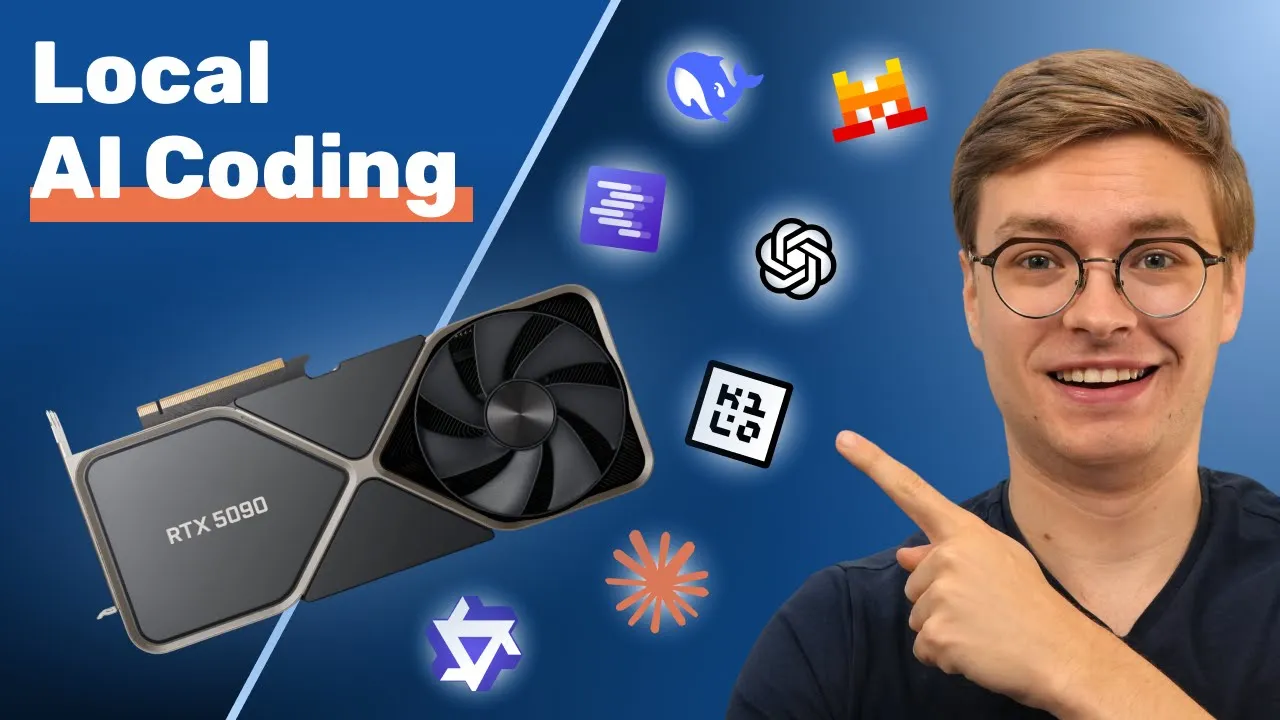
In my master class video I walk through the full hardware reality of local AI coding, including how I compare a top of the line Nvidia GPU against my MacBook Pro M4 with 48 GB of unified memory. The conclusion that surprises most viewers is that a small Apple Silicon machine, configured the right way, is one of the most cost effective ways to host language models for an entire household or small team. The Mac Mini M4 Pro takes that idea further because it is designed to stay on, run cool, and act like a real server. In this post I want to lay out exactly why I treat it as my primary local AI development server, what it can and cannot do, and how it fits into the broader picture of accessible AI on your local machine.
Why does a Mac Mini M4 Pro work as a local AI server?
The thing that makes Apple Silicon special for local AI is unified memory. On a standard Nvidia setup, you have system RAM and you have VRAM, and they are completely separate. If your model does not fit in VRAM, the rest spills into shared memory and performance falls off a cliff. I show this exact failure mode in the video when I deliberately overload my 5090 by asking it to load a 32 billion parameter model with too much context. The whole machine starts lagging, my video feed stutters, and the model crawls to a halt.
On a Mac Mini M4 Pro with 24 GB or 48 GB of unified memory, that distinction does not exist in the same way. The GPU and the CPU share one big pool. When you load a quantized 20 billion parameter model, it occupies roughly the same footprint it would on a discrete GPU, but you do not pay the penalty of crossing a PCIe bus to talk to system RAM. The 48 GB configuration is the sweet spot for serious work because it gives you room for a capable coding model and a meaningful context window at the same time. The 24 GB option is still very usable for smaller models and lighter agentic workflows, especially if you stick to 7 to 14 billion parameter quantized models.
The other piece that matters is the MLX backend. MLX is Apple’s machine learning framework designed specifically for Apple Silicon, and it takes advantage of the unified memory architecture in ways that generic CPU or GPU backends cannot. When you run an MLX optimized model through Ollama or LM Studio on the Mini, you get noticeably better tokens per second than you would running the same model through a generic GGUF path. For a 20 billion parameter model on the M4 Pro, I see throughput that is genuinely usable for interactive coding, not just batch jobs.
How do I set up the Mini as an always on inference server?
The setup is deliberately boring, which is exactly what you want from a server. Ollama runs as a background service, listens on the local network, and serves models over the same OpenAI compatible API that every modern AI coding tool already speaks. That last part is the key insight. Whether I am using Continue, Kilo Code, or routing Claude Code through a local proxy, every one of these tools just needs an OpenAI compatible endpoint. The Mini does not care which client is talking to it. It just answers requests.
I keep two or three models warm on the Mini at any given time. A 20 billion parameter coding model handles most of my agentic work because it is the smallest size that reliably does tool calling well. A smaller 7 to 8 billion parameter model handles autocomplete and quick refactors where latency matters more than reasoning depth. And I keep an embedding model loaded for retrieval augmented generation against my notes and codebases. The 48 GB configuration handles all three with room to spare for context.
Once Ollama is bound to the LAN, every other machine in my house can hit it directly. My MacBook Pro talks to the Mini over the local network. My Linux workstation talks to it the same way. There is no cloud hop, no API key rotation, no rate limiting. If you want to understand how the model loading and quantization choices interact with available memory, my VRAM requirements guide for local AI coding covers the math you need to pick the right model for your specific Mini configuration.
How do I access the server when I am away from home?
This is where Tailscale becomes essential. Exposing Ollama directly to the internet is a bad idea, and setting up a proper VPN with port forwarding and dynamic DNS is more work than it is worth. Tailscale solves the entire problem in about five minutes. You install it on the Mini, install it on your laptop, and the two machines see each other over a secure mesh network whether you are in the kitchen or in another country.
From my laptop, the Mini just looks like a machine on my local network, even when I am working from a coffee shop. I point my coding tools at the Tailscale hostname instead of a LAN IP, and everything else works identically. The Mini stays at home, stays plugged in, and serves models through whatever connection I have. Latency over Tailscale is usually within ten or twenty milliseconds of direct LAN access for my use case, which is invisible compared to the time the model itself spends generating tokens.
If you are setting this up for the first time and want a straightforward walkthrough of the Ollama side, my Ollama local development guide covers the model management commands and configuration choices in more depth.
Want to skip the setup and start with working projects?
I publish my local AI starter projects so you can see exactly how a Mac Mini server fits into a working development environment, including the configuration files I use for Continue, Kilo Code, and Claude Code router pointed at a local Ollama instance. Grab the open source projects here and you will have a runnable reference instead of a blank config file.
What does power draw and fan noise actually look like?
This is the question nobody answers honestly in YouTube videos, so I will. A Mac Mini M4 Pro under sustained inference load draws somewhere in the neighborhood of 30 to 60 watts depending on the model and context. At idle it sits around 5 to 10 watts. Compare that to my desktop with the 5090, which can pull over 500 watts under load, and the difference over a year of always on operation is enormous. If you run the numbers on your local electricity rate, the Mini essentially pays for the running cost of the desktop within a few months.
Fan noise is the other quiet superpower. Under most coding workloads the Mini is functionally silent. The fans only become audible when I am running long batch jobs that pin the GPU for extended periods. For a server that lives in my office or a shelf in the living room, this matters a lot. I can have it running 24 hours a day and never hear it.
Heat is a related concern, and the Mini handles it well. I keep mine in a well ventilated spot, and I have never seen sustained thermal throttling during normal coding sessions. If you plan to run hours of fine tuning or batch generation, you will want to think about airflow more carefully, but for serving inference requests it is genuinely a set and forget machine.
What real workloads can the Mini actually handle?
Here is the honest breakdown from my own daily use. For interactive coding with a 20 billion parameter quantized model and a context window in the 30 to 50 thousand token range, the Mini is fast enough to feel like a real assistant. Token generation is in the right ballpark for code completion, refactoring, and explaining unfamiliar files. It is not as fast as a discrete 5090 on the same model, but it is fast enough that I do not sit there waiting.
For agentic workflows where the model is calling tools, reading files, and iterating, the Mini does the job as long as you keep the context window honest. The same lesson from my video applies here. Agentic coding tools eat context like it is their favorite lunch. If you give a 24 GB Mini a 100 thousand token window and a 32 billion parameter model, it will choke. If you give a 48 GB Mini a 30 thousand token window and a well chosen 20 billion parameter model, it flies.
For batch jobs like generating embeddings across a large document corpus or running offline evaluation suites, the Mini is genuinely productive. I queue these up overnight and wake up to results. The thermal profile and power draw mean I can do this without thinking about it.
What it cannot do is replace a frontier cloud model on the hardest problems. When I need deep multi step reasoning across a large codebase, I still reach for a state of the art cloud model. The Mini handles eighty percent of my daily work and the cloud handles the other twenty. That ratio shifts the economics dramatically. If you want to think through that tradeoff in more detail, my cost effective local LLM setup guide walks through how I actually budget for hybrid local and cloud usage.
Is the Mac Mini M4 Pro the right choice for you?
If you are an AI engineer who wants a quiet, efficient, always on inference server that you can access from anywhere and that does not require a dedicated server room or a five hundred watt power supply, the Mac Mini M4 Pro at 48 GB is one of the strongest options available right now. It is not the absolute fastest path to local inference. A discrete Nvidia card with enough VRAM will outpace it on raw tokens per second. But for total cost of ownership, noise, power draw, and ease of setup, it is hard to beat.
The 24 GB version is still a good entry point if you are okay with smaller models and tighter context windows. The 48 GB version is what I recommend for anyone who wants to do serious agentic coding locally. And if you ever outgrow it, the Mini does not become obsolete. It stays useful as a dedicated embedding server or a fallback node while you add bigger hardware around it.
For the full walkthrough of how I set up local AI coding across hardware tiers, including the moment when I deliberately overload a GPU on camera so you can see exactly what failure looks like, watch the master class on YouTube here: https://www.youtube.com/watch?v=rp5EwOogWEw. And if you want to keep building real local AI engineering skills with a community of people doing the same thing, join the AI Engineering community at https://aiengineer.community/join. I hope to see you there.